
TrustDialer features
A safer way to use the phone every day.
Built for families, caregivers, and everyday Android users who want more than a stock dialer. TrustDialer brings contacts, calls, safety controls, caller-country clues, protected modes, diagnostics, and local-first backups into one clearer phone experience.
What it helps with. TrustDialer turns the first Android setup steps into a clearer checklist. It explains the practical pieces that affect daily calling: choosing the default phone app, allowing contact and call-log access, enabling notifications, and checking the device settings that can prevent a full-screen call experience from appearing when it should.
The aim is not to hide Android behind a new layer. It is to make the handoff understandable for the person setting up the phone and for the family member who may need to support them later. Guidance takes common differences between Samsung, Xiaomi/HyperOS, Pixel, and other Android phones seriously instead of assuming every settings screen looks the same.
Common questions
Does TrustDialer need to be the default dialer?
Android reserves the core calling role for the app selected as the default phone app. TrustDialer explains that decision and helps people check the related permissions, rather than leaving a family to discover a missing step only after a call screen behaves unexpectedly.
Why do notifications and battery settings matter for calls?
Some Android devices restrict background activity or notification behavior more aggressively than others. Reviewing those settings helps a family understand whether the phone is ready for dependable incoming-call and alert behavior.
Can a caregiver complete the setup?
Yes. A caregiver can use the guided information to prepare the phone with the person who will use it, then confirm that the important calling controls, contacts, and protection choices are in place before handing the device over.
What it helps with. Android phones do not all treat an incoming call the same way. TrustDialer’s setup guidance calls out the device settings that commonly affect whether a call opens full screen, stays visible on the lock screen, or arrives only as a notification.
On Android 14 and newer, the setup path can include full-screen call-pop-up access. Samsung phones may need notification, battery, and appear-on-top checks; Xiaomi or HyperOS devices may also need lock-screen, popup-window, background-window, and autostart allowances; Pixel phones may need unrestricted battery and full-screen notification settings. The app helps a caregiver investigate those differences instead of treating them as random call failures.
Common questions
Does TrustDialer control every OEM setting?
No. Android and the phone maker control those settings. TrustDialer explains the relevant checks and links to supported device settings where possible.
Why can the same app behave differently on two phones?
Battery management, notification presentation, overlay rules, and full-screen access vary by Android version and OEM. The calling connection still comes from Android and the carrier.
What should a caregiver test before handoff?
Test an incoming call while the phone is locked, confirm the intended notification behavior, check the battery/background allowances, and verify contacts and call history after the required permissions are granted.
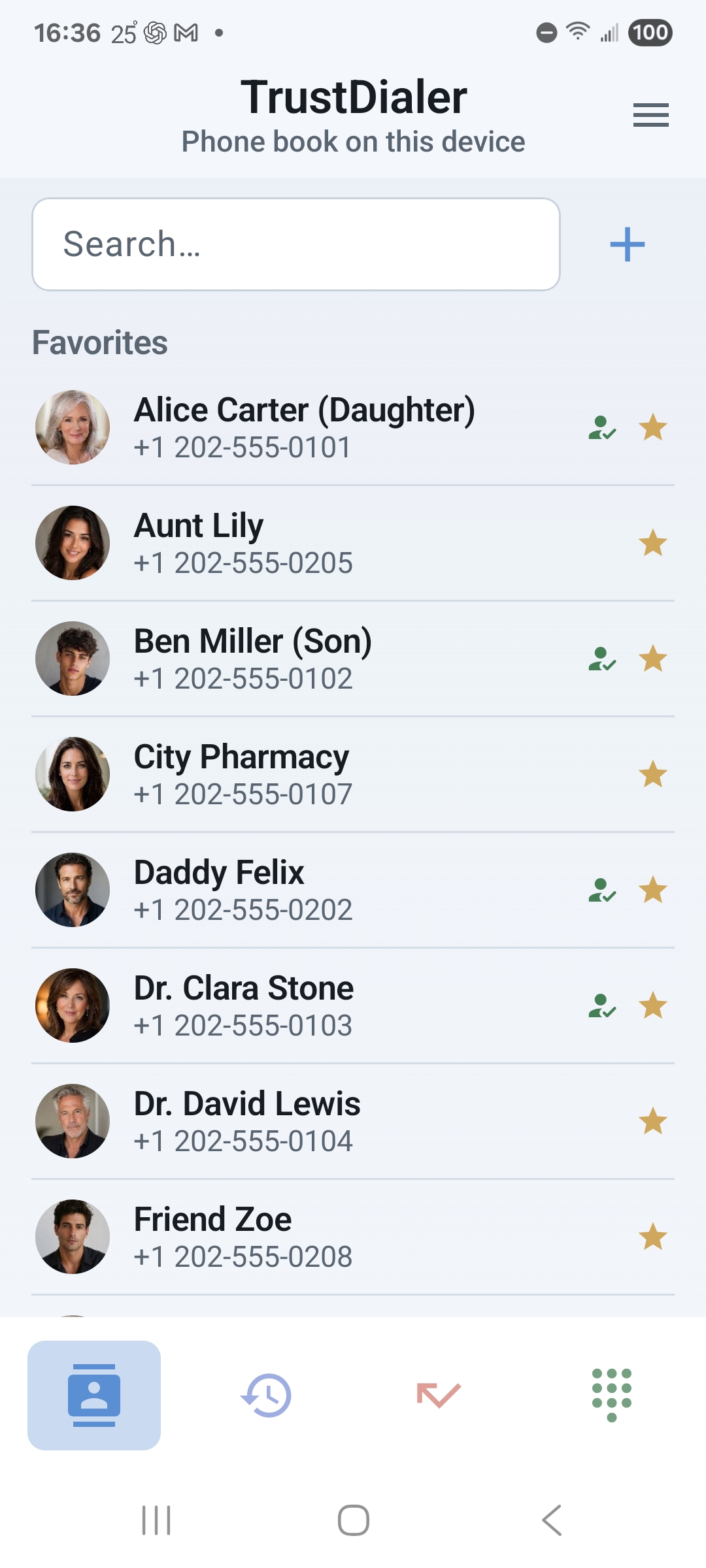
What it helps with. Everyday calling is usually about reaching the same small group of people quickly. TrustDialer brings favorites, ranked search, recent calls, voicemail, and speed-dial actions into a calmer calling flow so the person does not have to remember where Android placed a contact or keypad action. Search ranks names that begin with the typed text first, then searches favorites, contacts, recents, and blocked numbers while a short progress popup covers larger refreshes.
Search is designed around real names and repeat contacts. A family can keep important people visible, assign useful shortcuts, and use per-favorite calling choices that make urgent contacts easier to recognize. The result is less digging through a long address book when the phone is needed now.
Common questions
What can TrustDialer search?
Its everyday search experience is built around the information people use to place calls, including favorites, contacts, recent calls, and blocked-number records where those are available on the device.
Can important people stay at the top?
Yes. Favorites and repeat-caller shortcuts help a family keep the people who matter most easy to find, while the rest of the contact list remains available through search.
Is speed dial only for the keypad?
No. Speed-dial assignments can be made from the keypad or from contact-detail flows, giving different users a practical way to create the shortcut that makes sense to them.
What it helps with. The keypad keeps a few familiar phone conventions close at hand. Long-pressing 1 opens the configured voicemail route, while long-pressing 0 inserts the international plus sign. Speed-dial favorites use the remaining 2–9 long-press shortcuts when they have been assigned.
These shortcuts are small details, but they make the dialer easier to use without forcing a caregiver or everyday caller to remember a different gesture for every phone task. The actual voicemail and carrier behavior still comes from Android and the phone network.
Common questions
Can long-press 1 change the voicemail destination?
TrustDialer follows the app and phone call-default configuration available on that device. It does not replace the carrier’s voicemail service.
Does long-press 0 type a full country code?
No. It inserts the plus sign so the caller can continue entering the international number.
Can speed dial use digit 1?
No. Digit 1 remains the familiar voicemail shortcut; saved favorites use digits 2 through 9.
What it helps with. A phone number or useful detail in call history or contact details can be marked without retyping it. Swipe left to right across text to add a yellow highlight, or right to left to erase a mark. Tap highlighted text to copy it and open Android’s share sheet.
When the marked text is a phone number, TrustDialer also offers Call and Message actions and direct links to supported chat apps already installed on the phone. Sharing happens only after the person chooses an action and destination.
Common questions
Does highlighting change a contact or call record?
No. The mark is a way to act on visible text; it does not edit the saved contact or call-history entry.
Will every chat shortcut appear?
No. Direct shortcuts depend on which supported apps are installed on the phone.
What it helps with. TrustDialer keeps the ordinary phone tasks together: browse and edit contacts, see recent and missed calls, redial a familiar number, and reach voicemail from the same calling experience. Contact photos and the information Android makes available can stay connected to the people a family calls most.
The app is designed for the real permissions involved in those screens. Before Android asks for call-log access, a dedicated disclosure explains that TrustDialer uses it to show Recent and Missed calls and manage history as the default dialer. It offers Continue or Not now and explains that call history stays on the device rather than being sent to a TrustDialer server or third party.
Common questions
Can a missed call be called back quickly?
Yes. Recent and Missed calls offer callback. A missed call can also be marked important or set to Remind later; its reminder notification returns to the Missed tab.
Does TrustDialer replace the phone’s contact database?
No. It works with the contacts Android makes available, including read and write access when those permissions are granted.
What happens if contacts or recents are empty?
The setup guidance points back to Android permissions and the default-dialer role. Some phones require the full phone-related permission set before contacts and call history can populate correctly.
What it helps with. Families do not always think of contacts as one giant alphabetical list. TrustDialer lets people create simple groups such as Office, Car, or Shopping, assign contacts to them, and filter the Contacts page with clear group pills.
Group assignments are TrustDialer-owned organization, so a caregiver can make the calling list easier to scan without renaming the underlying Android contacts. Groups can also move through supported backup and setup-pack sections when the matching contacts are available on the destination phone.
Common questions
Can a contact belong to a group without changing Android?
Yes. TrustDialer stores the group assignment separately from the saved Android contact name.
Can the Contacts page show only one group?
Yes. The group filter narrows the list while an All contacts option keeps the complete address book available.
What happens when a group is deleted?
The contacts are not deleted. They return to the ungrouped view, so removing an organizing label does not remove the people themselves.
What it helps with. A dialer does not need to replace every communication app to be useful. TrustDialer contact details can expose the information Android provides—phone numbers, email addresses, postal address, notes, and contact photos—and hand the next action to an installed app through Android’s normal intents.
From a contact, the user can call, copy a number, open email, view an address in a maps app, open Messages, or open a WhatsApp or Viber chat when those apps and their supported actions are available. TrustDialer keeps the calling and contact organization local while letting the user choose which app handles the next step.
Common questions
Does TrustDialer include its own email, maps, or chat service?
No. It opens the compatible app already installed on the phone, so the user keeps control of which service handles that action.
What happens if WhatsApp, Viber, or a maps app is missing?
TrustDialer reports that no compatible app is available instead of pretending the action succeeded.
Can the contact editor save more than a phone number?
Yes. Supported contact editing includes names, phone numbers, email addresses, postal address, notes, and a contact picture when Android grants the required write access.
What it helps with. Real contacts rarely have just one number. TrustDialer can show a contact’s saved numbers together, add another number, edit a grouped number, or remove an outdated number without deleting the whole contact. That makes family, work, landline, and travel numbers easier to choose from the same contact page.
The editor also supports the practical details that help identify a caller: a name, email addresses, postal address, notes, and a contact picture. A photo can be added, changed, or removed, while the underlying Android contact remains the source of truth and normal Android write permissions still apply.
Common questions
Can one contact keep several phone numbers?
Yes. TrustDialer works with the grouped numbers Android exposes for that contact and lets the user add, edit, or delete an individual number.
Can an old number be removed without deleting the person?
Yes. Delete number applies to that saved number; delete contact is a separate action for removing the contact itself.
Can a picture be changed later?
Yes. The contact editor can add a picture, replace it, or remove it when Android allows the write operation.
What it helps with. A phone move often means more than reinstalling an app. A full TrustDialer backup can carry supported contacts, contact photos, recent calls, favorites, blocked numbers, whitelist entries, and protected setup so a family can rebuild the useful parts of the phone deliberately.
During restore, contacts are matched using available device hints, normalized phone numbers, and name-plus-number checks before TrustDialer creates a new entry. Recent-call and blocked-number writes still depend on Android permissions, roles, and device support, so skipped sections are reported rather than silently discarded.
Common questions
Does a full backup require a TrustDialer cloud account?
No. The backup is created and kept under the user’s control. Sharing or moving the exported file is an explicit action.
Can contact photos move with the contacts?
Supported full backups can include contact photos when Android exposes them for export and the relevant contact access is granted.
Will restore duplicate every contact?
TrustDialer tries to match existing contacts first. If it cannot confidently match one, it creates a new entry and reports the restore outcome instead of pretending the match was exact.
What it helps with. A phone with two SIMs or multiple calling accounts should not make the person guess which line will be used. TrustDialer can follow the phone’s default, ask before carrier calls, or keep one saved SIM/account as the preferred route when Android exposes those choices.
The active call can show the account context that Android provides, while the settings flow keeps the choice close to the place where a caregiver or phone owner expects to find it. This is useful for personal and work lines, travel SIMs, or a family phone with a deliberately fixed calling route.
Common questions
Can TrustDialer always ask which SIM to use?
On compatible dual-SIM devices, the call-default setting can be configured to ask. The chooser appears only when the active setting still requests a choice.
Can one line stay selected?
Yes. A saved SIM or account can be pinned when that is safer and less confusing for the person using the phone.
Does this override the carrier?
No. The carrier and Android Telecom stack still control what the device supports. TrustDialer presents the choices the phone makes available.
What it helps with. One contact can need a different presentation or calling rule from the rest of the address book. From contact details, TrustDialer can save a custom label used only inside the app, mark every saved number for that contact as always allowed through TrustDialer filters, or choose which carrier line should be used for that person.
Custom labels are part of the core contact experience. TrustDialer Plus unlocks the advanced rules: an explicit always-allow override and per-contact carrier-line behavior. The per-contact call-line choice can follow the app default, ask every time, or pin one available line. Voicemail continues to follow the app-wide default.
Common questions
Does a custom label rename the Android contact?
No. It changes how TrustDialer displays that person without rewriting the saved Android contact name.
Can a contact always be allowed through Grandma mode or whitelist filters?
Yes, with TrustDialer Plus. The explicit always-allow override applies to the contact’s saved numbers before the normal whitelist or protected-mode checks are evaluated. The regular blacklist rule still wins when that number should be blocked.
Can one person always use a particular SIM?
Yes, with TrustDialer Plus when Android exposes multiple calling accounts. The contact can inherit the app default, ask each time, or use a saved line.
What it helps with. When a call is active, the interface should make the next useful action obvious. TrustDialer keeps the essential controls readable: answer, reject, hang up, mute, hold or resume, and the DTMF keypad. It also surfaces the call-account context that matters on phones using more than one SIM.
Audio options follow the routes Android exposes on that device, such as speaker, earpiece, Bluetooth, or a wired connection. An optional control lock can also reduce accidental taps for people who need a less fragile in-call experience.
Common questions
Does TrustDialer replace Android calling hardware support?
No. Android and the phone’s carrier still provide the calling connection. TrustDialer focuses on making the supported on-screen controls and call information easier to understand and use.
What does dual-SIM context mean?
On compatible Android phones, the calling screen can show which call account or SIM is involved. That gives the user and caregiver clearer context when a device has separate personal and family, work, or travel lines.
Can Bluetooth and speaker controls still be used?
Yes. The audio-route picker reflects the routes Android makes available during that call, helping users switch deliberately instead of hunting through a crowded screen.
What it helps with. An incoming call should remain actionable even when opening the full call screen is inconvenient. TrustDialer’s call notification can open the in-call UI, answer, reject, dismiss, or hang up through Android notification actions when the device exposes that notification surface.
The notification actions follow the same Android call state and carrier connection as the full screen. They are a quick control path, not a second calling system, and notification behavior can still be affected by the device’s lock-screen, background, and notification settings.
Common questions
Can a caregiver answer without navigating the whole app?
Yes, when Android shows the TrustDialer call notification. The action can answer and open the active-call screen for the remaining controls.
Can the notification hang up an active call?
Yes. When the call is active, the notification action can request hang-up through the same Android Telecom connection.
What if notification actions are missing?
Check TrustDialer notifications, lock-screen presentation, battery restrictions, and the device-specific incoming-call settings described in setup.
What it helps with. A phone held near the face or in a pocket can receive accidental taps. TrustDialer can start the active-call controls locked, then require a deliberate slide to unlock before mute, keypad, hold, audio, or hang-up actions are used.
The setting is optional: a person who needs immediate controls can leave calls unlocked, while a caregiver-managed phone can keep the fragile controls behind one clear gesture. Locking again restores the protection without changing the carrier call itself.
Common questions
Does the lock prevent an incoming call from being answered?
No. It protects active-call controls after the call screen is open; the phone and notification actions still follow Android’s supported incoming-call path.
Can the user unlock only when needed?
Yes. Slide to unlock exposes the protected controls for that call, and the user can lock them again afterward.
Is this the same as the protected launcher?
No. Call control lock protects the in-call surface. Protected launcher controls the phone’s HOME surface for Grandma or Kid mode.
What it helps with. Carrier calls do not change state instantly, and Android may need time to switch audio or confirm hold. TrustDialer surfaces useful call states such as connecting, dialing, incoming, on call, on hold, and ending, while showing which phone account is in use when Android exposes it.
Audio-route changes also report their outcome. The interface can show that it is trying to switch to speaker, Bluetooth, a headset, or the phone, and can explain when Android kept the previous route or when hold is unavailable for that call. This gives the user a visible reason instead of a control that appears to do nothing.
Common questions
Does TrustDialer control whether hold is supported?
No. The carrier and Android Telecom stack decide whether hold or resume is available, while TrustDialer explains the pending, unavailable, or failed state.
Can the audio picker promise Bluetooth on every phone?
No. It lists the routes Android exposes for that call and reports when only one route is available.
Can the call screen show which SIM is active?
Yes, when Android exposes the account information for the current carrier call.
What it helps with. When a call screen, notification, permission, or safety rule behaves differently on a particular Android phone, TrustDialer can prepare a shareable diagnostics report instead of asking a family to describe the entire setup from memory.
Debug logging is opt-in. The report can include setup readiness, setup-assistant state, notification-channel status, call-control availability, whitelist and filtered-call safety state, the last call outcome, SMS-restore readiness where applicable, the emergency-number source, and recent app events. The user chooses when to mark an issue and when to share the report.
Common questions
Does TrustDialer send diagnostics automatically?
No. Debug logging is optional, and sharing happens only after the user explicitly chooses to share the generated report.
Can diagnostics show why incoming calls are delayed?
They can provide setup and notification context that helps identify common causes. Final behavior can still depend on the phone maker, Android version, carrier, and device permissions.
Is the report a live monitoring service?
No. It is a user-created troubleshooting snapshot, not a cloud dashboard or background support connection.
What it helps with. Diagnostics explain a problem after it happens; the TrustDialer Plus Self-test wizard helps a caregiver check the phone before handoff. Its guided seven-step pass reviews the default-dialer role, required permissions, incoming-call UI, protected-launcher recovery, backup health, whitelist behavior, and protected-mode safety.
Each step exposes a direct fix action when Android allows one or opens the matching TrustDialer Settings section. The final screen can share a short caregiver-friendly summary without sending the complete diagnostics report.
Common questions
Does the wizard make a test call automatically?
No. It checks setup readiness and safety state without pretending to verify carrier behavior that Android and the phone network control.
Can it identify missing permissions?
Yes. It checks the contacts, call-history, calling, and notification access needed for daily use and points to the relevant fix path.
Is the summary the same as the debug report?
No. The wizard summary is a shorter caregiver handoff result. The full diagnostics report remains an opt-in troubleshooting export.
What it helps with. A caregiver should not have to interpret one vague “setup complete” message. Each self-test step can be marked Ready, Warning, Needs attention, or Skipped, and the summary counts those states so unfinished work is visible before the phone changes hands.
When a problem is actionable, the wizard can open the matching TrustDialer section, launch a supported Android fix, or explain why the check is not applicable. It can flag missing default-dialer access, permissions, incoming-call popups, launcher handoff, stale backups, empty whitelist setup, or protected-mode safety gaps, then share a short caregiver summary.
Common questions
Does Skipped mean the phone failed?
No. A skipped step can mean the related feature is not configured on that phone, such as protected launcher or whitelist mode. The summary keeps that separate from an active problem.
Can the wizard fix every warning automatically?
No. It opens direct Android or TrustDialer paths where available, while carrier, OEM, permission, and device-role decisions still require the phone owner or caregiver.
Can the summary be shared without sending the full debug log?
Yes. The self-test summary is a shorter handoff report and is separate from the opt-in diagnostics export.
What it helps with. A protected phone can stay calm without making important calls disappear. When the relevant access is granted, TrustDialer can use Android Do Not Disturb to keep SMS and app alerts available but silent while Grandma mode, Kid mode, or the selected whitelist quiet mode is active.
Phone calls can still come through while sound, vibration, and notification lights are quieted. The app explains when Android quiet-notification access is still missing, because the behavior depends on the device’s notification policy controls rather than a private TrustDialer notification switch.
Common questions
Does quiet mode block phone calls?
No. Its purpose is to quiet SMS and app alerts while keeping phone calls available within the supported Android notification policy.
Can quiet mode work for whitelist schedules?
Yes. The whitelist can use the quiet profile while that mode is active, alongside the saved trusted-caller behavior.
What if the setting is unavailable?
TrustDialer reports that Android Do Not Disturb access is needed and provides the relevant settings path when the device allows a direct fix.
What it helps with. A phone can be powerful without making every screen feel crowded. TrustDialer includes larger touch targets, screen-reader labels for key actions, and compact layouts that are easier to use one-handed. The app also keeps practical controls for theme, language, keypad tone, action confirmations, debug logging, and protected-mode visibility in Settings.
Protected-mode settings can stay hidden until a caregiver is ready to configure Grandma mode, Kid mode, emergency, or the launcher. That keeps the everyday dialer focused while leaving the deeper setup available when it is needed.
Common questions
Can the app use another language?
Yes. TrustDialer includes an in-app language choice, and spoken tile names or incoming caller announcements try to follow that selected language when Android has a suitable Text-to-Speech voice.
Can a caregiver hide protected-mode setup?
Yes. The visibility setting lets a family keep those sections out of the main Settings view until Grandma mode or Kid mode is part of the phone’s plan.
Does accessibility change the phone’s Android role?
No. These interface choices improve the TrustDialer experience; Android still controls the device roles, permissions, and system accessibility services.
What it helps with. Grandma mode and Kid mode can be made visually calmer for the person using the phone. Optional status-bar quieting hides the status bar and notification icons on the locked protected home, while quiet-notification settings can silence other alerts without removing the phone call path.
A caregiver can also save an optional password reminder for the hidden five-tap rescue screen. The hint is intended for the caregiver, not as a way to display the admin password on the everyday screen; if it is not enough, the rescue flow still provides the app-settings fallback described in the launcher handoff.
Common questions
Does hiding the status bar create a full kiosk?
No. Android can still expose some system surfaces through gestures, settings, or emergencies. Protected launcher remains guided access.
Is the password reminder shown to the phone user?
No. It is kept for the hidden rescue screen so a caregiver has a private hint if the admin password is forgotten.
Can phone calls still come through?
Yes. The quiet protected surface is intended to reduce unrelated visual and notification noise while preserving supported calling and emergency behavior.
What it helps with. The dialer should fit the way the phone is already used. TrustDialer can use a light theme, a dark theme, or follow the phone’s system theme, with a separate choice for softer muted icon colors or stronger vivid colors across tabs, call actions, and keypad buttons.
Language can follow the phone or be selected inside the app, with English, German, French, Spanish, and Hungarian options in the current release. Keypad tone and confirmation prompts are also user-controlled, so a caregiver can reduce sound or require a deliberate check before selected actions.
Common questions
Can TrustDialer follow Android dark mode?
Yes. Choose the phone theme to let the app follow the device’s light or dark setting, or select one directly.
Can the keypad stay quiet?
Yes. Keypad tone is configurable in call behavior settings.
Can the app language be different from the phone?
Yes. The app can follow the system language or use one of its supported in-app languages independently.
What it helps with. Contacts, call history, blocked numbers, filtered-call entries, and backups are personal phone data. TrustDialer is designed to keep those everyday records on the device unless the user deliberately exports, shares, or sends something through an Android action.
There is no required TrustDialer account, background TrustDialer cloud-sync service, analytics SDK, advertising SDK, or automatic remote upload of contacts, call logs, SMS, or backups. Encrypted backup files use a password chosen by the user, and TrustDialer cannot recover a forgotten backup password.
Common questions
Does using TrustDialer require a cloud account?
No. A cloud account is not required for everyday calling, contacts, filtering, protected modes, diagnostics, or local backup creation.
When can data leave the phone?
Only through an intentional action such as exporting or sharing a backup, sharing diagnostics, opening another app through an Android intent, or enabling caregiver SMS alerts in the full direct-download build.
Does local-first mean Android permissions are unnecessary?
No. TrustDialer still needs the Android roles and permissions required for the feature being used, such as contacts, call history, calling, notifications, or the default-dialer role.
What it helps with. Favorites do more than shorten a search. TrustDialer lets a family make important callers easier to recognize with speed-dial assignments and an incoming ringtone chosen for an individual favorite, while quick redial and contact-detail actions keep repeat calls close at hand. Holding keypad digits 2–9 can call the saved speed-dial shortcuts directly.
These choices are app-owned and can move with a supported backup or caregiver setup pack. That means a careful favorite list does not have to be rebuilt from memory after a phone change, even when Android still requires the new device’s contacts and permissions to be checked separately.
Common questions
Can different favorites have different incoming ringtones?
Yes. TrustDialer supports a per-favorite incoming ringtone when the device and Android audio settings make that available.
Do speed-dial assignments stay separate from contacts?
They remain connected to the matching contacts but are stored as TrustDialer calling preferences, so the app can restore or skip them independently when needed.
What if a favorite cannot be matched after restore?
TrustDialer calls out unresolved favorites instead of pretending that every shortcut was restored successfully.
What it helps with. Not every unfamiliar call deserves the same response. With TrustDialer Plus advanced call protection, Whitelist settings can handle private callers and numbers not saved in contacts by ringing normally, ringing silently, rejecting, sending the call to voicemail when the carrier allows it, or allowing a repeat caller after the same unsaved number calls again within the configured window.
The policy is evaluated after emergency contacts, blacklist entries, Plus per-contact always-allow rules, whitelist behavior, and protected-mode rules. That gives families a clear order of operations instead of treating every unknown number as identical. The saved policy can also appear in backup preview and diagnostics.
Common questions
Can a private caller use the repeat-caller exception?
No. Private callers cannot use the repeated-caller bypass because Android does not provide a stable number to compare.
Does unknown-caller handling replace the blacklist?
No. It is a separate policy for private or unsaved callers, and the explicit blacklist remains higher priority.
Can the policy be checked later?
Yes. The active setting is part of the app’s safety state and can be surfaced through diagnostics and supported backup preview.
What it helps with. Calling safety is easier to trust when overlapping rules have a known order. TrustDialer evaluates an emergency contact first, then the Plus per-contact always-allow override when unlocked, then Android’s blocked-number list. After that, Plus whitelist, Grandma mode, and Kid mode allowed lists can decide whether the call is permitted; Plus unknown-caller handling applies to the remaining private or unsaved callers.
This explains why a matching whitelist entry does not defeat an explicit block, while an emergency contact or deliberate Plus always-allow choice can remain callable when a caregiver has configured it that way. Filtered-call review and diagnostics identify the active reason when a call is rejected.
Common questions
What wins when a number is both blocked and whitelisted?
The blocked-number rule wins in the normal whitelist case.
Can emergency contacts still call?
Yes. Emergency contacts are evaluated first so they remain callable from the protected safety flow.
Can one contact be intentionally allowed even if it is blocked?
No. The blacklist still wins. With Plus, always-allow can bypass whitelist or protected-mode filters, but it does not silently weaken the shared blocked-number list.
What it helps with. Some phones need more predictable calling rules than a standard dialer provides. TrustDialer can work alongside Android’s shared blocked-number handling, while TrustDialer Plus adds a local whitelist-oriented layer for families who want the phone to favor approved contacts and known numbers.
Blocked entries stay part of the Free daily dialer path. Plus whitelist entries can carry context such as notes or contact links, and Plus schedules can make stricter calling rules fit a routine—for example, during a child’s school hours or an older adult’s quieter evening period.
Common questions
What is whitelist mode?
Whitelist mode is a TrustDialer Plus protection choice that prioritizes calls from trusted contacts or approved numbers. It is intended for phones where unfamiliar calls are distracting, risky, or simply not useful.
Does it remove Android’s blocked-number list?
No. TrustDialer is designed to work with the device’s shared blocked-number handling while giving families an additional place to review and manage the calling rules they choose.
Can the same rules run all the time?
With Plus, they can, but they do not have to. Weekly scheduling helps a family make stronger filtering fit the person’s real routine instead of treating every hour of every day the same way.
What it helps with. Caregiver alerts should communicate something useful, not create a second phone to monitor. TrustDialer keeps filtered-call review and local notifications on the device in every build, while TrustDialer Plus unlocks caregiver alert automation. The full direct-download build can optionally send selected caregiver SMS alerts for filtered calls, low battery, daily filtered-call digests, and missed Grandma mode check-ins.
The alert setup supports reason filters, one stored caregiver number, a chosen SMS route, and rate limiting. That lets a family decide which events deserve an SMS and which are better handled by the local review screen. SMS uses the phone’s own carrier path and may incur normal carrier charges; it is not a TrustDialer cloud relay.
Common questions
Can every build show filtered-call notifications?
Yes, when Android notifications are enabled. The local review and notification path is available in every build; caregiver alert automation requires Plus, and caregiver SMS alerts also require the full direct-download build.
Can the caregiver receive every event?
The family chooses the alert reasons and can use rate limiting. The current alert design supports one stored caregiver number rather than email, cloud relay, or multi-recipient delivery.
Are low-battery and missed-check-in alerts exact?
They depend on Android broadcasts, alarms, and OEM battery behavior. Aggressive battery restrictions can delay an alert, and the low-battery trigger may occur a little before or after the nominal threshold.
What it helps with. A caregiver should be able to test the route before relying on it. With TrustDialer Plus in the full direct-download build, the alert screen can send one short test SMS after the caregiver number, default SMS role, permission, and SIM route are configured.
The same screen can schedule a daily filtered-call digest, send a low-battery alert when the phone reaches 15 percent or lower while not charging, and set the Grandma mode check-in deadline. The user can see whether the check-in is pending or already saved, while rate limits and once-per-day rules reduce duplicate alerts.
Common questions
Can the caregiver test the selected SIM?
Yes. The test SMS uses the configured route, making it possible to confirm the caregiver number, default SMS role, permission, and fixed SIM before rollout.
Does the digest send continuously?
No. It is one daily summary of filtered calls from the last 24 hours when the configured alert is due and there are calls to report.
What happens after the daily check-in is saved?
TrustDialer records the on-device “I am OK” confirmation and does not send the missed-check-in alert for that day.
What it helps with. A caregiver may need to know that a call was rejected, but not every filtered event deserves a text. With TrustDialer Plus in the full direct-download build, caregiver SMS alerts can be limited to callers outside the allowed lists, numbers blocked by the blacklist, or both reasons. One caregiver number can be configured, and the phone’s default SMS route or one selected SIM can be used.
TrustDialer checks the Android requirements before sending: it must be the default SMS app, have the needed SMS and SIM access, and have a usable carrier route. A test message uses the saved number and route, while rate limiting helps prevent a burst of repeated alerts.
Common questions
What does caregiver SMS alert sending require?
It requires TrustDialer Plus, a configured caregiver route, and the Android SMS access needed for the selected alert route.
Can a fixed SIM be safer than the phone default?
Yes. On a dual-SIM phone, choosing one available SIM keeps the caregiver route predictable even if the phone’s default SMS line changes later.
Can the app send alerts without becoming the default SMS app?
No. Android requires TrustDialer to hold the default SMS role for this feature, along with the relevant permissions.
What it helps with. A filtered call should not become an invisible event that no one can explain later. TrustDialer keeps a dedicated on-device review flow so the person using the phone or a caregiver can see what was filtered. When TrustDialer Plus advanced call protection is active, safe callers can also be saved to the whitelist from the review path.
Local caregiver notifications can keep useful information close to the device. With TrustDialer Plus, caregiver alert automation can add intentional alerts for selected situations. SMS alert delivery specifically requires the full direct-download build, filters, SIM choice, and rate limits rather than being switched on by surprise.
Common questions
Can a filtered caller be approved later?
Yes, with Plus advanced call protection. The review flow is built to make that decision practical: a family can inspect the entry, decide it is trusted, and save the number through the appropriate whitelist path.
Are caregiver alerts always SMS messages?
No. Local caregiver notifications are available on the device. Plus caregiver alert automation controls the alert feature set; SMS delivery also depends on the installed release path and on the settings a family explicitly enables.
How can a family avoid too many alerts?
TrustDialer’s Plus alert setup includes reasons, SIM selection, and rate-limiting choices so a caregiver can focus on events that are genuinely useful instead of receiving a stream of duplicate messages.
What it helps with. A trusted-caller rule can be useful at school, overnight, or during a quiet daily routine without needing to be identical every hour of the week. TrustDialer Plus lets a caregiver apply whitelist behavior across weekdays or weekends, then refine individual days with all-day or custom hours.
With Plus, entries can be added from contact details, and incoming-call enforcement follows the saved schedule. If a number appears in both trusted and blocked data, the blocked-number rule keeps precedence so a family can understand which safety decision wins.
Common questions
Can every weekday use the same schedule?
Yes. Weekday and weekend batch actions make a common routine quicker to set up, while individual days can still use their own hours.
Can a whitelist day run only during certain hours?
Yes. A day can be all-day or use a custom time window when the phone should enforce the trusted-caller rule.
Can a trusted number bypass a blocked number?
No. When the same number appears in both lists, the blocked-number rule takes precedence. This keeps an accidental duplicate entry from weakening the explicit block.
What it helps with. A weekly calling routine often crosses midnight. TrustDialer schedules can keep whitelist protection active overnight—for example, from 19:00 to 08:00—while still letting a caregiver choose a different rule for each day.
Quick-apply controls can copy one schedule to all days, weekdays, or weekends before individual exceptions are edited. The schedule screen also makes inactive states visible: a saved schedule can be outside its active hours, or every day can still be Off, so a caregiver can tell whether protection is actually running.
Common questions
Can a schedule cross midnight?
Yes. Custom whitelist hours support an overnight start and end time when the phone should stay protected across the day boundary.
Can weekends use a different routine?
Yes. Weekdays and weekends can be applied as groups, then adjusted one day at a time.
Can a caregiver see why whitelist protection is not active?
Yes. TrustDialer distinguishes an active window, an outside-hours pause, a disabled mode, and a schedule where every day is Off.
What it helps with. Blocking a number should remain part of the phone, not a private list that only one screen understands. TrustDialer works with Android’s shared blocked-number management and adds TrustDialer notes or contact context so a caregiver can remember why a number was blocked.
The whitelist layer stays separate from the shared block list. A family can review filtered calls, link a trusted entry to a contact, or add a number from contact details, while an explicit blocked-number entry still wins if the same number appears in both places.
Common questions
Can other Android phone apps respect the blocked list?
When Android makes shared blocked-number management available, the list belongs to the system calling environment rather than only to TrustDialer. The exact behavior still depends on the device and the active default-dialer role.
Are TrustDialer notes part of Android’s shared list?
No. The block is shared through Android; the explanatory note and extra contact context are stored by TrustDialer.
Can blocked numbers be restored to another phone?
TrustDialer can restore supported blocked-number data when Android allows the app to manage that list. If the role is unavailable, the restore reports the section as skipped.
What it helps with. A blocked-number list can become difficult to review after months of use. TrustDialer can search blocked numbers by number, name, or note and sort the list by newest, oldest, name, or number while Android remains the source of the shared block itself.
That gives a caregiver a practical way to find an old entry, understand the local reason attached to it, and remove the block deliberately. The app keeps its optional labels and notes locally, while other supported phone apps can still use the Android blocked-number list.
Common questions
Can the blocked list be searched by a note?
Yes. TrustDialer searches the local name and note context as well as the blocked number.
Can the list be sorted for review?
Yes. The blocked-number screen supports recent-first, oldest-first, name, and number ordering.
Does removing a local note unblock the number?
No. Notes and the Android shared block are separate choices. Removing or editing the note does not silently change the block.
What it helps with. Grandma mode and Kid mode are meant to stay deliberately small. TrustDialer builds their trusted-contact tiles from Favorites, so a caregiver first chooses the people who should be easy to reach and then adds those favorites to the protected mode.
This keeps one familiar contact foundation connected across the ordinary dialer, speed dial, and protected screens. Incoming filtering can follow those trusted contacts when the mode is active and TrustDialer is the default dialer.
Common questions
Can any contact become a Grandma or Kid tile?
Only contacts already added to Favorites can be selected for those protected contact surfaces.
Does removing a favorite remove the Android contact?
No. It changes TrustDialer’s favorite and protected-mode choices, not the saved Android contact itself.
Can the protected contact list stay separate from everyday favorites?
Yes. Favorites are the available pool, while Grandma and Kid mode each keep their own selected tile membership.
What it helps with. Grandma mode turns the phone into a trusted-contact surface instead of a settings maze. The interface can focus attention on the people and actions a person uses most, while a caregiver password protects the changes that should not happen accidentally.
Families can pair the simpler home surface with incoming-call filtering tied to trusted favorites. Optional speak-first calling and spoken caller announcements can be used in the selected app language when clearer confirmation is more helpful than a small label on screen.
Incoming and active calls use a simpler large-caller screen with one clear Pick or End action. That keeps the protected mode consistent when the phone changes from the trusted-contact home to an actual call.
Common questions
Is grandma mode only for grandparents?
No. The name describes a simpler, protected calling mode. It can suit anyone who benefits from fewer decisions, larger trusted-contact choices, or a caregiver-managed setup.
Can someone still call emergency contacts?
Yes. Emergency access is kept as a deliberate part of the protected experience, and a caregiver can set the relevant emergency contacts and information in advance.
How are protected changes handled?
A caregiver password can be used for the parts of the experience that should not change through an accidental tap, helping the daily screen stay familiar over time.
What it helps with. Grandma mode can support a simple daily rhythm as well as simple calling. A daily “I am OK” card gives the person a clear check-in action, while the caregiver can configure the deadline and, in the full direct-download build, an optional missed-check-in alert path.
Speak-first calling can read a trusted tile name before placing a call, and spoken incoming caller announcements can make a ringing phone easier to understand when reading a small label is difficult. Both follow the selected app language when Android has a suitable Text-to-Speech voice installed.
Common questions
Does the app automatically contact a caregiver every day?
No. The daily card is an on-device check-in. A missed-check-in SMS alert is an optional full direct-download feature that requires the relevant default SMS role, permission, SIM route, and caregiver settings.
Can spoken calling be turned off?
Yes. Speak-first calling and spoken incoming caller announcements are optional controls, so a family can choose the quieter experience when speech is not helpful.
What if the phone has no matching voice?
Android’s installed Text-to-Speech voices determine what can be spoken. If the selected language is unavailable, Android may fall back to another available voice.
What it helps with. Kid mode and the protected launcher help a family keep an Android phone focused on the people and apps that belong in a child’s everyday routine. The experience can provide a simplified trusted-contact surface while caregivers decide which applications remain visible and available.
On supported Android configurations, the protected launcher can take the phone’s HOME role. That makes it possible to present a calmer starting point than a standard launcher full of unrelated apps, while retaining an emergency recovery path so a setup mistake does not leave a family locked out.
Incoming and active calls switch to a large Pick or End screen with the saved animal icon, so a child does not have to interpret the regular dialer’s denser call controls.
Common questions
Is kid mode the same as parental controls?
It complements the controls available on the Android device. TrustDialer focuses on a more guided home and contact experience, with caregiver choices about visible apps and calling access.
Can a caregiver change the visible apps later?
Yes. The protected-launcher setup is intended to be maintained as a child’s needs change, with protected controls helping avoid accidental changes from the everyday screen.
What happens if the launcher setup needs recovery?
TrustDialer includes an emergency recovery path so a caregiver has a way back to device management if a configuration needs to be corrected.
What it helps with. Grandma mode and Kid mode are separate setups, but the phone needs one clear protected shell when it is being used. TrustDialer resolves an accidental overlap deterministically: an explicit launch-on-boot choice wins, and when both choices are tied, Kid mode is the more restrictive fallback.
Enabling one protected mode directly also disables the other, and the caregiver self-test reports a conflict if an imported or older setup temporarily contains both. This prevents the home screen, incoming-call rules, and launcher handoff from silently competing with each other.
Common questions
Can both modes be active as two separate home screens?
No. TrustDialer keeps one effective protected shell so the phone has one predictable set of tiles, call rules, and recovery behavior.
What decides the effective mode after a restore?
The saved launch-on-boot choice is considered first. If neither mode has a unique launch choice, Kid mode is selected as the deterministic fallback.
Will a caregiver be told about a conflict?
Yes. The self-test and diagnostics can identify the overlap so it can be reviewed before the phone is handed over.
What it helps with. Protected calling works better when the daily surface looks familiar. Caregivers can choose trusted-tile membership, labels, numbers, order, colorful tile choices, and Kid mode icons based on an animal or a photo from the phone. The same setup can be carried into a future device through supported protected-mode restore sections.
Grandma mode and Kid mode can also be configured to relaunch after reboot when that is part of the handoff plan. Families can keep the protected-mode settings hidden from the everyday Settings page until the setup is ready, then make the visual and launch choices deliberately.
Common questions
Can the caregiver change the tile order later?
Yes. Trusted tiles, labels, numbers, and order are caregiver-managed choices and can be updated as the person’s calling needs change.
Can the same appearance be restored without changing the contacts?
Yes. Appearance and protected-mode sections can be restored independently where the backup matches existing tiles. TrustDialer keeps the current tile roster when appearance is restored without the mode data.
Can protected-mode settings stay out of sight?
Yes. The main Settings visibility control lets a family hide those sections until a caregiver is ready to manage the protected experience.
What it helps with. A protected home screen is easier to use when its tiles match the person’s memory and routine. Grandma and Kid mode tiles can use short custom labels, be reordered, keep a chosen phone number, and use automatic or caregiver-selected background and title colors. Kid mode can also use a built-in animal picture or a photo from the phone for a trusted contact.
These choices are separate from the everyday Android contact name, so a caregiver can make one protected surface say “Mum” or “Doctor” without renaming the shared contact. The selected tiles, colors, labels, and icons are part of the supported protected-mode setup that can be reviewed or restored deliberately.
Common questions
Can a tile have a shorter name than the contact?
Yes. The protected tile label is a TrustDialer presentation choice and does not rewrite the Android contact.
Can the caregiver choose the tile’s colors?
Yes. Automatic soft colors can be used, or an administrator can set the tile background and title colors.
Can Kid mode use a personal photo?
Yes. A Kid mode tile can use a preset animal image or a photo selected from the phone when the relevant Android media access is available.
What it helps with. A missed call is often a task, not just a timestamp. TrustDialer puts callback, mark-important, remind-later, copy-number, contact-creation, contact-edit, blacklist, and whitelist actions close to Recent and Missed rows. Long-press selection supports deleting several rows together, and SMS-enabled builds can also offer Text back from a missed call.
Caregivers can save a reminder that reopens the Missed tab until it is completed or dismissed. If a phone should not retain a visible call-history trail indefinitely, Call history auto-delete can remove older Recent and Missed entries after a chosen number of days or minutes, with a manual cleanup action available when call-history access allows it.
Common questions
Can an important missed call be reminded later?
Yes. Mark important and Remind later are available directly from missed-call history, and reminder notifications bring the task back into view.
Can an unknown number be saved from a missed call?
Yes. The row can open add-to-contacts, while a matching saved contact can open the edit-contact flow instead.
Can automatic cleanup remove only missed calls?
The current setting removes visible Recent and Missed call-history entries according to the chosen schedule. It requires Android call-history read and write access.
What it helps with. A call can have a reason or a next step that is easy to forget. TrustDialer lets a person add a short note and tags such as Doctor, Bank, Spam, Family, or Call back tomorrow from Recents, Missed, and contact details.
Saved notes become searchable, tags can filter call history later, and recent-call backups keep those annotations with the supported call records. This gives a caregiver useful context without turning every call into a complicated case-management workflow.
Common questions
Can tags be customized?
Yes. Alongside the common tags, TrustDialer supports custom tags entered by the user.
Can notes be added from a contact?
Yes. Contact details can show related recent calls and open the same call-note editor used from Recents or Missed.
Do notes and tags leave the phone automatically?
No. They stay in the local app data unless included in an export or deliberately shared through a supported action.
What it helps with. The phone’s most common actions should not require opening a full app and finding the right tab. TrustDialer provides a compact home-screen icon widget with one-tap Contacts, Missed, and Quick redial. With TrustDialer Plus, the same widget can expose a live Whitelist on/off button.
Long-pressing the TrustDialer launcher icon can open supported actions. Supported launchers can also expose dynamic favorite-contact shortcuts that follow TrustDialer favorites and the custom labels saved per contact. Quick redial uses the newest recent call when one exists and opens Recents when it does not.
Common questions
Does the widget toggle a separate whitelist?
No. When Plus is active, its button changes the same TrustDialer whitelist mode used from Settings.
Do favorite shortcuts use the Android contact name?
They can follow the TrustDialer custom label when one is saved, making a simpler caregiver-facing name available to supported launchers.
Are there dedicated Grandma or Kid widgets?
Not currently. The shipped convenience surface focuses on core calling actions and respects the same safety rules as the full app.
What it helps with. A suspicious number is easier to investigate when the lookup action starts from the call that just happened. In Phone setup, a caregiver can save one or more preset countries or custom spam-search sites, then open the selected site directly from a Recent or Missed row.
Custom entries can be named, edited, reset to a preset default, or removed. If multiple sites are configured, TrustDialer asks which one to open; the phone number is inserted into the saved URL template and the search takes place in the user’s chosen Android browser or web app.
Common questions
Does TrustDialer run a cloud spam database?
No. It opens the external lookup site the caregiver configured. TrustDialer does not claim that an external result is accurate or operate that site.
Can a family use a local country preset and a custom site?
Yes. More than one lookup entry can be saved, and the selection dialog appears when the call row has multiple choices.
Is the lookup available from both call lists?
Yes. Recent and Missed actions can use the configured lookup entries when a number is available.
What it helps with. A caregiver can choose which extra apps stay visible when TrustDialer becomes the Android HOME app for Grandma mode or Kid mode. The protected launcher keeps the daily surface focused on trusted contacts and selected apps without pretending to be a device-owner kiosk.
Caregiver handoff includes a recovery path. Five taps on the TrustDialer title opens Emergency launcher recovery, where the normal Home app settings or Android app settings can be reached if the ordinary admin path is unavailable. Families should test that path on the target phone before handing it over.
Common questions
Can the protected launcher hide every Android system screen?
No. It is guided access, not a full device-owner kiosk. Android, notifications, settings, and OEM-specific escape paths can still exist.
What if the caregiver cannot unlock the normal home screen?
Tap the TrustDialer title five times to open Emergency launcher recovery, then use Home app settings or Open app settings to return to the normal launcher.
Is recovery part of setup?
It should be. The handoff checklist recommends setting the admin password, testing the normal unlock, testing five-tap recovery, and confirming that Home app settings opens on that device.
What it helps with. Simplifying a phone should not hide the information that matters in an urgent moment. TrustDialer keeps an emergency layer available with a configurable emergency number, trusted emergency contacts, and a read-only medical card stored inside the app.
The medical-card view is designed for quick reading and can be made reachable from the lock screen in the supported protected flow. Families can prepare the details in advance so that the person holding the phone does not need to navigate a settings menu during a stressful moment.
The Emergency panel can call the configured emergency number, reach up to two trusted emergency contacts, or open the medical card. Emergency contacts remain callable from Grandma mode and their incoming calls stay allowed, even when ordinary protected calling filters are active.
Common questions
What can a medical card include?
A family can store practical read-only details such as a person’s name, preferred language, date of birth, medical information, and emergency contacts, based on what is useful for that person.
Is the medical card a replacement for professional medical advice?
No. It is a concise reference kept on the phone. Families should keep the information accurate and use it alongside appropriate medical guidance and local emergency services.
Can emergency contacts be different from favorites?
Yes. Emergency contacts can be selected for urgent situations, while the favorite contacts used for ordinary calling can remain a separate, simpler set.
How many trusted emergency contacts can be saved?
Up to two. They are added from contact details so the caregiver can verify the number before using it for emergency access.
What it helps with. Moving to another phone should not mean blindly importing everything or rebuilding a careful family setup from scratch. TrustDialer treats backup and restore as part of the product: families can create password-protected encrypted full backups, validate them, preview a restore, and choose supported sections deliberately. TrustDialer Plus adds smaller setup packs for caregiver-managed setup.
Setup packs are useful when a caregiver wants to carry forward the trusted configuration that made the first phone manageable. Depending on the chosen content, a pack can include supported settings such as protected modes, launcher choices, whitelist state, favorites, contact groups, spam lookup sites, emergency details, appearance, and related configuration.
Exported full-backup filenames can include a chosen phone name, app version, and export time, which helps caregivers distinguish files when they support more than one device. During longer contact or SMS imports, the restore screen can show the active section and processed-versus-total progress.
Common questions
Are TrustDialer backups stored in a required cloud account?
No. The local-first backup flow is designed around exports a family creates and controls. A remote TrustDialer account is not required to create or keep the everyday app setup.
What is restore preview?
Restore preview and validation help a family inspect what a supported backup contains before applying it. Setup-pack preview and restore require TrustDialer Plus. The preview makes the move to a new phone more deliberate than an all-or-nothing import.
Can every part of a phone be restored?
No app can bypass Android’s own boundaries. TrustDialer focuses on the data and setup sections it supports, and explains the restore path rather than claiming to move information the device does not allow an app to control.
What it helps with. With TrustDialer Plus, caregiver setup can move between phones without turning the protected-mode password into backup content. TrustDialer can restore the mode’s tiles, appearance, launcher choices, whitelist, and safety configuration, but the Grandma and Kid admin passwords are deliberately not included in exported backups or setup packs.
That boundary means the caregiver must choose or set the password again on the destination phone instead of inheriting a secret inside a file that may be shared through email, Drive, removable storage, or another Android share target. A forgotten password can use the protected five-tap rescue path and app-settings fallback, with the warning that clearing app data removes local mode setup unless a backup is restored.
Common questions
Can the protected tiles move without the admin password?
Yes. Supported protected setup can be restored, but the administrator password itself must be created or entered separately on the destination phone.
Can TrustDialer recover a forgotten admin password?
No. The rescue screen can show an optional caregiver hint, and the last-resort app-settings path can clear local data, but the original password is not revealed.
Does sharing a setup pack expose the password?
No. The protected-mode admin password is excluded from the exported setup data.
What it helps with. A backup is only useful if a family knows what it contains and how old it is. TrustDialer shows when the last full backup or Plus setup pack was saved, warns when a full backup is missing or stale, and keeps the reminder informational rather than blocking the user from exporting or restoring.
Before writing data, a caregiver can load a backup, inspect section summaries, check the password and schema, run a non-destructive simulation, and restore only the parts that are needed. Supported choices include app settings, protected modes, launcher apps, appearance, admin and safety data, favorites, whitelist data, contacts, blocked numbers, recent calls, and SMS where the build and Android role allow it. Setup-pack transfer actions require Plus.
Common questions
Does a stale-backup reminder prevent a new export?
No. It is a freshness prompt to encourage safer device moves, resets, or repairs; it does not block export, preview, simulation, or restore.
Can a caregiver test a restore without changing the phone?
Yes. Restore simulation validates the password, file structure, backup sections, and likely Android restrictions without writing app-owned or Android-owned data.
Can a setup pack move contacts and SMS?
No. Plus setup packs carry caregiver-managed TrustDialer configuration. Contacts, recent calls, blocked numbers, and SMS belong to full-backup or supported Android restore paths instead.
What it helps with. Caregivers often maintain more than one phone. TrustDialer lets them give a device a memorable backup name, then includes that name alongside the app version and export time in full-backup filenames so a saved file can be identified before it is opened.
The Backup screen keeps the handoff state visible: it can show that no full backup exists yet or that the last one is getting old, and it warns before a reset when there is no recorded full backup. With TrustDialer Plus, a setup pack can be used for protected configuration, but the app distinguishes it from a full phone-data backup.
Common questions
Can two phones produce recognizable backup files?
Yes. A caregiver can set a phone name such as “Dad” or “Kitchen phone” before exporting, making files easier to tell apart.
Does a stale reminder stop the phone from working?
No. It is a visible freshness warning intended to encourage a new export before a reset, repair, or device move.
Does a setup pack replace a full backup?
No. A Plus setup pack carries TrustDialer caregiver configuration, while a full backup is the path for supported contacts, call history, blocked numbers, and other phone data.
What it helps with. A restore should explain its boundaries before it changes a phone. TrustDialer checks the backup schema and entry integrity, verifies the password before writing, and shows which sections will be replaced, merged, or skipped. Preview text also identifies the TrustDialer version and Android/device context that created the file.
When Android refuses a section, the result is reported as a warning instead of being presented as a successful restore. That can include contacts permission being off, an unmatched favorite, unavailable blocked-number management, blocked call-history writes, or the default SMS role being required for SMS restore.
Common questions
What happens with the wrong backup password?
Validation fails before app-owned or Android-owned data is written. TrustDialer cannot recover a forgotten password, so the family should store it safely when the encrypted backup is created.
Does restore always replace everything?
No. The supported flow can restore selected sections, setup-pack sections, or the full backup. Contacts use matching rules intended to avoid duplicates, while protected-mode, appearance, favorites, whitelist, and safety sections can be handled independently.
Will TrustDialer hide an Android limitation?
No. If Android blocks a write or role-dependent operation, the preview and restore status call out the skipped section so a caregiver knows what still needs attention.
What it helps with. Large contact or SMS restores can take time, especially on an older phone. TrustDialer keeps the busy state informative: it names the active section, shows whether the app is comparing, simulating, or restoring, and can display processed-versus-total entry counts for longer imports.
The same status flow reports sections that Android skips because a permission, default role, or device capability is missing. That gives a caregiver a useful handoff result—what completed, what was skipped, and what needs to be fixed—rather than a spinner that looks successful but leaves uncertainty.
Common questions
Can a caregiver see which section is running?
Yes. The restore status identifies the current section, such as contacts or SMS, while the operation is in progress.
Does simulation show progress too?
Yes. Simulation uses the same section-oriented status style while checking the selected restore without writing changes.
What happens if one section cannot be restored?
TrustDialer reports that section as skipped or warned and continues to explain the remaining result instead of silently treating the entire operation as complete.
What it helps with. A section count alone does not tell a caregiver what a restore will do. TrustDialer’s preview can label supported changes as already matching, set, replace, update, merge, add, clear, review, needing access, or unavailable before the selected sections are applied.
The preview is based on the current phone and the current selection, so a caregiver can inspect only the parts that matter, run Simulation first, and keep the current light or dark theme when settings are restored. Setup-pack preview also separates what it can change from the phone data it intentionally excludes.
Common questions
Can preview tell whether a section needs Android access?
Yes. The section summary can identify missing contacts, call-history, blocked-number, or SMS access before restore.
Can a caregiver restore only appearance or favorites?
Yes. Sections can be selected independently when the loaded backup supports them.
Does a setup pack preview contacts and SMS?
No. With Plus, it clearly lists caregiver setup sections it can restore and excludes contacts, recents, blocked numbers, and SMS.
What it helps with. Move selected data between nearby Android phones running TrustDialer without a cable, internet connection, or cloud account. Open Settings > Phone to phone on both phones, choose Send on one and Receive on the other, then compare the 6-digit code before approving the transfer.
Bluetooth is the baseline; optional fast connections use Google Nearby Connections, which selects an available Bluetooth or Wi-Fi transport and may use Wi-Fi Direct. NFC is not supported. Find the receiver by name and compare the matching codes, or scan its session QR code to authenticate the one-time session without the code check. The selected payload is encrypted end to end with a one-time key and does not pass through TrustDialer servers. Google Nearby and QR scanning may send SDK diagnostics to Google; see the Privacy Policy.
Common questions
Does it keep two phones synchronized?
No. It is a deliberate one-time transfer, not continuous sync or remote management.
Can Google Play and website Full editions share?
Yes, with compatible TrustDialer versions on both phones. This does not promise a transfer feature in TrustDialerSms or an older downloaded build.
Does the receiver apply the data immediately?
No. After accepting the offer, the receiver reviews the restore preview, can untick sections, and can Simulate before Restore.
What it helps with. Share selected or all contacts, blocked numbers (blacklist), whitelist entries, and favorites. Search and All / None controls help choose individual contacts and list entries. Grandma starter, Kid starter, Everything, and Custom provide useful starting selections that can be adjusted before sending.
Contacts are matched and updated rather than blindly duplicated. Blocked numbers, whitelist entries, and favorites are added while existing entries remain. The receiving phone keeps occupied speed-dial digits and its ringtones. If the sender's whitelist is enabled, restoring it also enables the whitelist on the receiver and can reject callers outside the list.
Common questions
Do contacts and lists require Plus?
No. Contacts, blocked numbers, whitelist entries, and favorites are free transfer sections.
Does Everything include SMS and call history?
No. Everything means all supported transfer sections. SMS, recent calls, and contact groups are not transferred.
Where are new contacts created?
The receiver chooses the contact target in the restore preview. Existing matched contacts stay in their current account.
Can I use a file instead?
Yes. Save to a file instead exports the current selection as a password-protected encrypted .sdb file. Open it under Backup > Restore backup on the receiving phone, review the sections and individual list items, optionally Simulate, then confirm Restore. Keep the password separate from the file.
What it helps with. A caregiver can send selected app settings, spam lookup sites, Grandma mode, Kid mode, launcher apps, appearance, emergency layer, and caregiver alerts alongside contacts and lists. Setup sections require TrustDialer Plus on the receiving phone; without Plus, free sections can still be restored while setup sections are skipped.
Review the offer and restore preview carefully: Grandma and Kid tiles are added by default, while other protected-mode controls come from the sender. Add to this phone or Replace can be chosen for whitelist, favorites and Grandma/Kid tiles; Replace removes existing entries not received. Contacts and blocked numbers are always added. Unselected sections are not applied. Administrator passwords, dual-SIM line choices, Android default-app roles, and the light/dark theme are not transferred.
Common questions
Can I share settings without copying everything?
Yes. Choose the supported setup sections on the sender, then review and untick unwanted sections on the receiver.
Are caregiver passwords copied?
No. Set Grandma and Kid administrator passwords again on the receiving phone, and grant Android roles there as needed.
Where are the full instructions?
See Help for Phone to phone, QR pairing, optional fast connections, encrypted selection files, merge rules, and troubleshooting. Use a full Backup when you also need supported data outside the transfer selection.
What it helps with. A backup is more useful when the caregiver can choose where to save or open it and can identify the phone it came from. TrustDialer uses Android’s file and share surfaces for backup targets, keeps the chosen phone name in exported filenames, and always restores data back onto the current phone.
When a restore creates a new contact, the selected contact target controls where that new contact is written after TrustDialer first tries to match an existing contact. The Backup screen also shows backup health before a reset, warns when a full backup has not been recorded, and keeps confirmation required before Reset data runs.
Common questions
Can the restore target be another phone remotely?
No. The exported file can be moved by the user, but restore writes to the Android phone where TrustDialer is currently running.
Does the contact target change existing matches?
No. It is used for newly created contacts after the app checks for a confident existing match.
Can Reset data run accidentally?
TrustDialer keeps a confirmation step for reset, and the Backup screen surfaces the current backup state so a caregiver can make an informed decision before clearing local data.
What it helps with. A backup should be easy to place somewhere the caregiver already understands. TrustDialer can use Android’s document picker for Documents or Downloads, removable SD/USB storage when the phone exposes it, Google Drive when it is installed and available, or the normal Android share surface such as Gmail or another file-handling app.
Availability is checked on the current phone rather than promised blindly. If a file picker, removable drive, Drive provider, or share app is missing, the backup screen can explain why that target is unavailable while leaving other supported destinations available.
Common questions
Does TrustDialer upload backups automatically?
No. The caregiver chooses the destination or sharing action. Google Drive and email are optional Android destinations, not a required TrustDialer cloud service.
Can a backup be restored from removable storage?
Yes, when Android exposes readable SD or USB storage and the file picker can open it.
What happens if the phone has no Drive or share app?
TrustDialer reports that target as unavailable instead of pretending the export or import completed.
What it helps with. Restoring contacts is not just copying rows into an address book. TrustDialer first tries to match an existing contact using the available source identity, normalized phone numbers, and name-plus-number checks, then lets the caregiver choose where genuinely new contacts should be created.
New records can target the original saved account when it is available, a device contact store, or a selected Google account exposed by Android. Existing matches stay where they already are, so changing the destination does not unexpectedly move or duplicate contacts that are already on the phone.
Common questions
Can restore create duplicate contacts?
TrustDialer attempts confident matches first. If a match is not safe, it creates a new contact and reports the result rather than silently overwriting the wrong person.
Can new contacts go to a Google account?
Yes, when Android exposes a writable Google contact account on the destination phone.
What happens to contact groups and favorites?
They are matched against the contacts that exist on the destination phone. Unresolved assignments are reported instead of being attached to an unrelated contact.
What it helps with. Not every repair requires wiping the whole app. TrustDialer can reset selected local data such as contacts, recent or missed calls, call notes, blocked numbers, whitelist entries, filtered-call history, or SMS when Android allows the relevant role and access.
The reset screen explains linked data before it runs. Clearing contacts also removes TrustDialer-owned favorites, speed dial, contact groups, protected-mode tiles, and emergency-contact links so the phone is not left with shortcuts pointing at missing records. A caregiver can select the data to clear and review the confirmation before anything is deleted.
Common questions
Can only missed calls be cleared?
Yes. Missed calls have their own reset choice, while recent-call reset can include the related missed history and call notes.
Does clearing contacts remove the Android contact immediately?
The reset uses the access Android grants TrustDialer, and the result reports any section that still needs permission or role access.
Is reset reversible?
No. The app warns that the selected local data cannot be undone from the reset screen, which is why backup health and confirmation are shown first.
What it helps with. Android may allow one kind of phone data to be cleared while withholding another. TrustDialer reports which selected sections were cleared and which still need access, instead of presenting a partial reset as if everything completed.
The reset flow can distinguish a successful clear, a partial result, a blocked result, and a generic failure. That matters when contacts, call history, blocked numbers, or SMS are governed by different Android permissions and default-app roles.
Common questions
Can a reset clear call notes without clearing contacts?
Yes. Call notes are a separate selectable data category.
What if SMS reset is not permitted?
The result identifies the missing default SMS role or access instead of claiming the messages were deleted.
Can the caregiver retry only the blocked section?
Yes. The reported access requirement makes it possible to fix the relevant Android role or permission and rerun the selected reset.
What it helps with. A simpler phone should not make it easy to erase the wrong history by accident. TrustDialer’s Confirmation prompts settings let a user choose which exit and delete actions should ask first, while required safeguards keep especially broad operations behind confirmation.
Call-history actions can distinguish deleting selected rows from clearing an entire Recent or Missed page. The same approach keeps Reset data explicit, giving a caregiver a chance to stop and check backup health before local app data is cleared.
Common questions
Can every confirmation be disabled?
No. Some broad destructive actions keep confirmation required so a convenience setting cannot turn a full data clear into a single accidental tap.
Can selected call rows be deleted separately from all history?
Yes. TrustDialer has separate confirmation paths for selected call-log deletion and full-page call-history clearing.
Does this protect Android data outside TrustDialer?
It protects the actions TrustDialer initiates. Android permissions and system behavior still govern what the app can actually delete.
What it helps with. Google Play is the store-managed app: Google handles installation, updates, eligible trials, and the annual Plus subscription at the price it shows in the store. TrustDialer Full is the direct-download app from this website. It adds the website-only SMS-aware tools: SMS backup and restore, caregiver SMS alerts, and TrustDialer messaging shortcuts.
Both apps keep the core daily dialer and offer the protected family feature set. In Google Play, that set uses the Play Plus subscription. In TrustDialer Full, it uses a signed website Trial or Plus license. The €39 website Plus license works only in TrustDialer Full, and a Google Play subscription works only in Google Play.
Common questions
What does TrustDialer Full mean?
It names the direct-download app. It is not a separate paid token tier; the signed Plus license is the paid family-feature unlock.
What does the Plus website license add?
It unlocks Grandma mode, Kid mode, Protected launcher, Caregiver alerts, advanced call protection, setup packs, Self-test, and advanced per-contact rules.
Why choose TrustDialer Full?
Choose it for the direct-download app, website-managed Trial or Plus access, or the supported SMS-aware tools. Android roles and permissions still apply.
What it helps with. The core daily dialer remains usable without forcing every family into a paid plan. Google Play manages its eligible trial and annual Plus subscription. TrustDialer Full uses signed website Trial and Plus licenses, including the €39 Plus website license.
In either app, Plus unlocks Grandma mode, Kid mode, Protected launcher, Caregiver alerts, advanced call protection, setup packs, Self-test wizard, and advanced per-contact behavior. If Plus access later expires or is locked, saved contacts, colors, and caregiver setup stay on the phone rather than being silently erased.
Common questions
Does the free tier remove core calling?
No. Core calling remains available; the plan controls protected family setup, advanced call protection, setup packs, self-test, caregiver alerts, and the free-tier presentation.
How does the website license work?
Install the signed Trial or Plus license in TrustDialer Full. The app verifies it locally on the phone and shows the active access state. It does not unlock the Google Play app.
What it helps with. Families can evaluate the dialer foundation before deciding whether they need the protected feature set. TrustDialer Full can run in Free mode when no website license is installed, Trial mode for a time-limited evaluation, or Plus mode after a signed website license is installed.
The license changes what TrustDialer Full unlocks; it does not require a separate Android package for each website access state. TrustDialer Full keeps its supported calling, backup, and SMS-aware tools, while Trial and Plus add the protected family feature set. Google Play subscriptions do not transfer into TrustDialer Full.
Common questions
Is Trial a different app?
No. Trial is a signed website-license state in TrustDialer Full. It is intended for testing the Plus family workflow on a real phone before a longer rollout.
Does TrustDialer Full auto-unlock Plus features?
No. Plus features unlock when TrustDialer Full verifies a signed website Trial or Plus license.
Does Plus require a different app download?
No. The signed website license changes access in the installed TrustDialer Full app. It is separate from the Google Play subscription.
TrustDialer Plus feature. Many families start with Google, Samsung, Xiaomi, or another synced contact account. Plus can help rebuild the phone around device-local contacts, encrypted full backups, and deliberate restore choices without requiring a TrustDialer cloud account.
When Android exposes a writable device-contact destination, Plus can restore genuinely new contacts there while existing matches remain where they already belong. TrustDialer does not remotely delete a family’s third-party cloud copies, so the family remains in control of what stays with another provider.
Common questions
Do I need TrustDialer Plus to move synced contacts back to the phone?
Yes. Local-contact migration is a TrustDialer Plus feature. Free can still create encrypted backups, but it does not offer this migration path.
Does TrustDialer delete Google, Samsung, or Xiaomi contacts from the cloud?
No. TrustDialer does not remotely remove contacts from another provider account. It lets the user make deliberate backup and restore choices on the phone.
Does this require a TrustDialer cloud account?
No. TrustDialer does not require its own cloud account for contacts or backup. The caregiver chooses where an encrypted backup file is saved or shared.
Can every Android phone create a device-local contact?
Not always. The available destination depends on the writable contact stores Android exposes on that phone. TrustDialer makes the available choices clear before creating new contacts.
What it helps with. When an international number rings, TrustDialer can show the country name in the incoming-call experience. That gives families a practical warning sign when an unfamiliar out-of-country number calls, before they answer, ignore it, or call back.
The country label is based on the phone number, not a verification of who is calling. It helps people make a calmer, more informed decision without claiming that it can prove a caller is legitimate.
Common questions
Does the country label prove the caller is safe?
No. It is a number-based clue, not identity verification. Scammers can use many techniques, so an unexpected caller should still be treated carefully.
Will this show for every call?
It is most useful when the incoming number can be interpreted as an international number. Availability depends on the number format Android supplies to the dialer.
Can it help spot an obvious scam attempt?
Yes. Seeing that an unfamiliar number is associated with another country can help a family pause before responding, particularly when the call is unexpected.
Get the full experience.
TrustDialer Full brings supported calling, backup, and family-first tools together in the direct-download app.